Register & Activate Your Account
Access the CO-EYE monitoring portal, create your account, and activate it. Every new account receives $5 free credits to start your trial — enough to monitor defendants at $0.08/day for over 60 days.
Open CO-EYE Monitoring Portaldemo11.ankle-monitor.com — No credit card required for sign-up.
Download & Install AMClient App
Install the AMClient app on the defendant's smartphone. Available for both iPhone and Android. After installation, launch the app and authorize all required permissions (location, camera, notifications, background activity) for proper monitoring.
⚠ Important: Grant All Permissions
AMClient needs Background Location, Camera, Notifications, and Bluetooth permissions. On some Android phones, also exclude AMClient from battery optimization to ensure continuous tracking.
For detailed instructions, see the AMClient User Manual (PDF).
Configure the Server URL
Open AMClient → go to Settings → enter the Server URL for your monitoring portal:
Server URL
http://demo11.ankle-monitor.com:7105
⚠ Do NOT change the port number 7105 — it is the dedicated port for AMClient connections.
AMClient Settings Screen
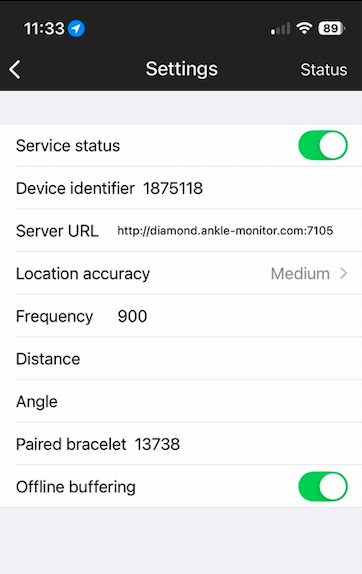
AMClient Settings — configure Server URL and note your Device Identifier for the next step.
Add the Device in Monitoring Portal
Log in to the CO-EYE monitoring portal. Go to Devices page → click "Add Device". Set the Identifier field to match the Device Identifier shown in AMClient's Settings screen (see screenshot above).
💡 Key Point
The Identifier in the portal must exactly match the Device Identifier in AMClient Settings. This links the app to your monitoring dashboard.
Toggle Service Status & Start Tracking
Go back to AMClient Settings → toggle "Service status" to ON. The app will begin sending GPS data to your monitoring portal.
Within seconds, you'll see the defendant's location data appear on the Devices page. Then create a new Enrollee and assign this device for ongoing monitoring.
🔒 Remote Settings Control
All AMClient settings — server URL, tracking frequency, accuracy level, and service status — can be remotely adjusted from your monitoring portal. You can also remotely lock the Settings screen so the defendant cannot modify or disable tracking. No physical access to the phone is needed.
You're All Set!
The defendant is now being monitored in real time. Use the CO-EYE portal to set up geofences, curfew schedules, check-in requirements, and receive violation alerts.